> ## Documentation Index
> Fetch the complete documentation index at: https://learn.byword.ai/llms.txt
> Use this file to discover all available pages before exploring further.
# Images
> Configure AI-generated images for your Byword content
Each Byword article comes with AI-generated images to complement your content. The latest model (Flux - Oct 2024) delivers high-quality visuals that are uniquely generated for your content.
## Image style options
Byword offers two distinct image styles to match your content needs:
* **Illustrative**: Creates digital artwork and illustrations with clean lines and abstract elements
* **Photographic**: Generates more realistic, photo-like images
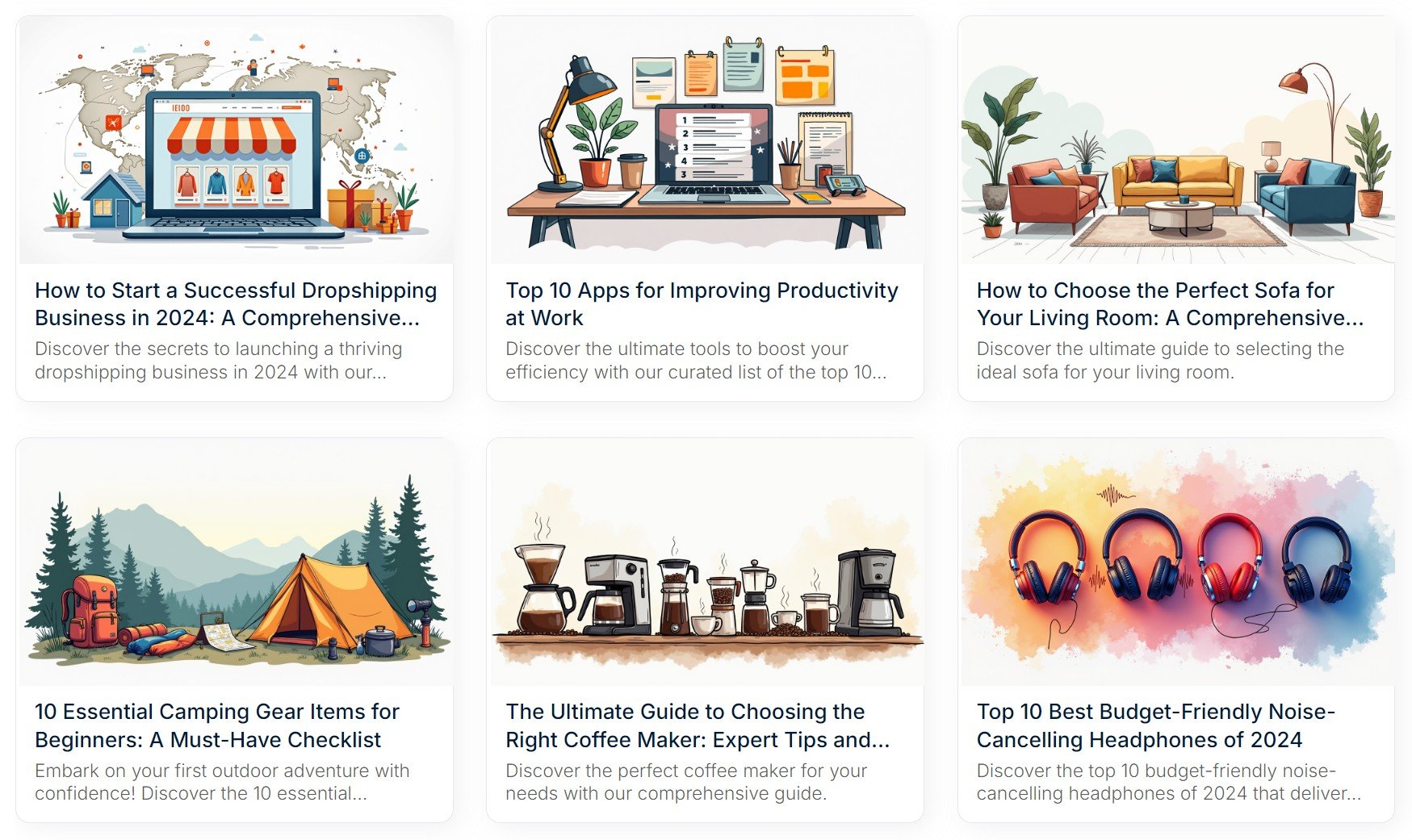 Illustrative images work well for:
* Abstract concepts
* Technical topics
* Brand-focused content
* Modern, clean aesthetics
Illustrative images work well for:
* Abstract concepts
* Technical topics
* Brand-focused content
* Modern, clean aesthetics
.jpg?fit=max&auto=format&n=gQ6fODqM0RuA3OS6&q=85&s=47031ad6bb797c37c8f594ce3af379a1) Photographic images work well for:
* Product reviews
* Travel content
* Food-related articles
* Topics that benefit from realism
You can switch between these image styles in your account [Settings](https://byword.ai/settings) page.
## Customization options
### File format
Choose between two file formats for your images:
* **.jpg** (default): Smaller file sizes (better for SEO), with compression options
* **.png**: Higher quality but larger file sizes
When using .jpg format, you can further customize:
* **Prioritize filesize** (default): Creates images around 100-200KB, optimized for page speed
* **Prioritize quality**: Generates less compressed images (500KB+) with better visual clarity
PNG files provide the best quality but can approach 1MB in size, which may impact page load speed.
### Aspect ratio
Byword offers both landscape and portrait aspect ratios:
* Square: 1:1
* Landscape options: 16:9, 3:2, 4:3, 5:4
* Portrait options: 9:16, 2:3, 3:4, 4:5
For portrait orientation (vertical images), the dimensions are flipped from their landscape counterparts.
### Color scheme
Customize the colors in your generated images by specifying a color scheme in the settings:
For best results:
* Use one or two colors
* Include zero or one modifier per color
* Keep descriptions simple
**Good examples:**
* orange
* pastel orange
* pastel blue and orange
* pastel green and faded purple
**Less effective examples:**
* orange blue green white (too many colors)
* deep rich ocean-like blue (too many modifiers)
* generate in the style of andy warhol (not a color specification)
### Images per article
Control how many images appear in your content:
* **1** (default): Header image only
* **2-4**: Header image plus additional inline images throughout the article
All inline images use the same aspect ratio as your header image. They're automatically positioned at logical breaks in your content.
## Technical details
### Image styling
Images are styled with inline CSS using:
* `width: 100%`
* `max-width: 600px`
This ensures they align with your text width up to a maximum of 600 pixels.
### Integration support
Images are automatically uploaded to your media library and set as the featured image for the article.
Images are uploaded to whichever CMS collection field you specify during integration setup.
These methods return the image asset URL in their results for you to handle as needed.
## Retrieving images
For HTML exports (both clipboard copies and CSV exports), images are not embedded directly. Instead:
* In the single article generator, right-click to copy or save the image
* In CSV exports, you'll receive links to the images
## Copyright
All images are generated by Byword's custom AI model, meaning:
* You don't need to worry about copyright or royalties
* Each image is unique to your article
* You won't find these images elsewhere online
Photographic images work well for:
* Product reviews
* Travel content
* Food-related articles
* Topics that benefit from realism
You can switch between these image styles in your account [Settings](https://byword.ai/settings) page.
## Customization options
### File format
Choose between two file formats for your images:
* **.jpg** (default): Smaller file sizes (better for SEO), with compression options
* **.png**: Higher quality but larger file sizes
When using .jpg format, you can further customize:
* **Prioritize filesize** (default): Creates images around 100-200KB, optimized for page speed
* **Prioritize quality**: Generates less compressed images (500KB+) with better visual clarity
PNG files provide the best quality but can approach 1MB in size, which may impact page load speed.
### Aspect ratio
Byword offers both landscape and portrait aspect ratios:
* Square: 1:1
* Landscape options: 16:9, 3:2, 4:3, 5:4
* Portrait options: 9:16, 2:3, 3:4, 4:5
For portrait orientation (vertical images), the dimensions are flipped from their landscape counterparts.
### Color scheme
Customize the colors in your generated images by specifying a color scheme in the settings:
For best results:
* Use one or two colors
* Include zero or one modifier per color
* Keep descriptions simple
**Good examples:**
* orange
* pastel orange
* pastel blue and orange
* pastel green and faded purple
**Less effective examples:**
* orange blue green white (too many colors)
* deep rich ocean-like blue (too many modifiers)
* generate in the style of andy warhol (not a color specification)
### Images per article
Control how many images appear in your content:
* **1** (default): Header image only
* **2-4**: Header image plus additional inline images throughout the article
All inline images use the same aspect ratio as your header image. They're automatically positioned at logical breaks in your content.
## Technical details
### Image styling
Images are styled with inline CSS using:
* `width: 100%`
* `max-width: 600px`
This ensures they align with your text width up to a maximum of 600 pixels.
### Integration support
Images are automatically uploaded to your media library and set as the featured image for the article.
Images are uploaded to whichever CMS collection field you specify during integration setup.
These methods return the image asset URL in their results for you to handle as needed.
## Retrieving images
For HTML exports (both clipboard copies and CSV exports), images are not embedded directly. Instead:
* In the single article generator, right-click to copy or save the image
* In CSV exports, you'll receive links to the images
## Copyright
All images are generated by Byword's custom AI model, meaning:
* You don't need to worry about copyright or royalties
* Each image is unique to your article
* You won't find these images elsewhere online